 UnoPDF
Appearance
Working with multiple documents - React
You can create multiple pdf viewers on one webpage. It is possible to have multiple PdfDocument, PdfPages and PdfThumbnails components on one page and link the related ones together.
The PdfDocument component has a name attribute that can be set to a string value.
html
}
<PdfDocument name="doc-a" />
{
PdfPages and PdfThumbnails have a document attribute that can be set to the value of PdfDocument's name attribute to tie them together. PdfPages also has an optional name attribute that you can use to link a PdfThumbnails component to a PdfPages component. Provide the PdfPages' name to the PdfThumbnails's pagesviewer attribute.
html
}
<PdfPages page-mode={PageMode.Multi} document="doc-a" name="pages-a" />
<PdfThumbnails document="doc-a" pagesviewer="pages-a" />
{
Similarly you can also use the document attribute of the PdfUploader to link it to a PdfDocument.
html
}
<PdfUploader document="doc-a" />
{
Connecting documents, uploaders, pages and thumbnails can all be done declaratively in the html. You don't need any code to do that.
Screenshot
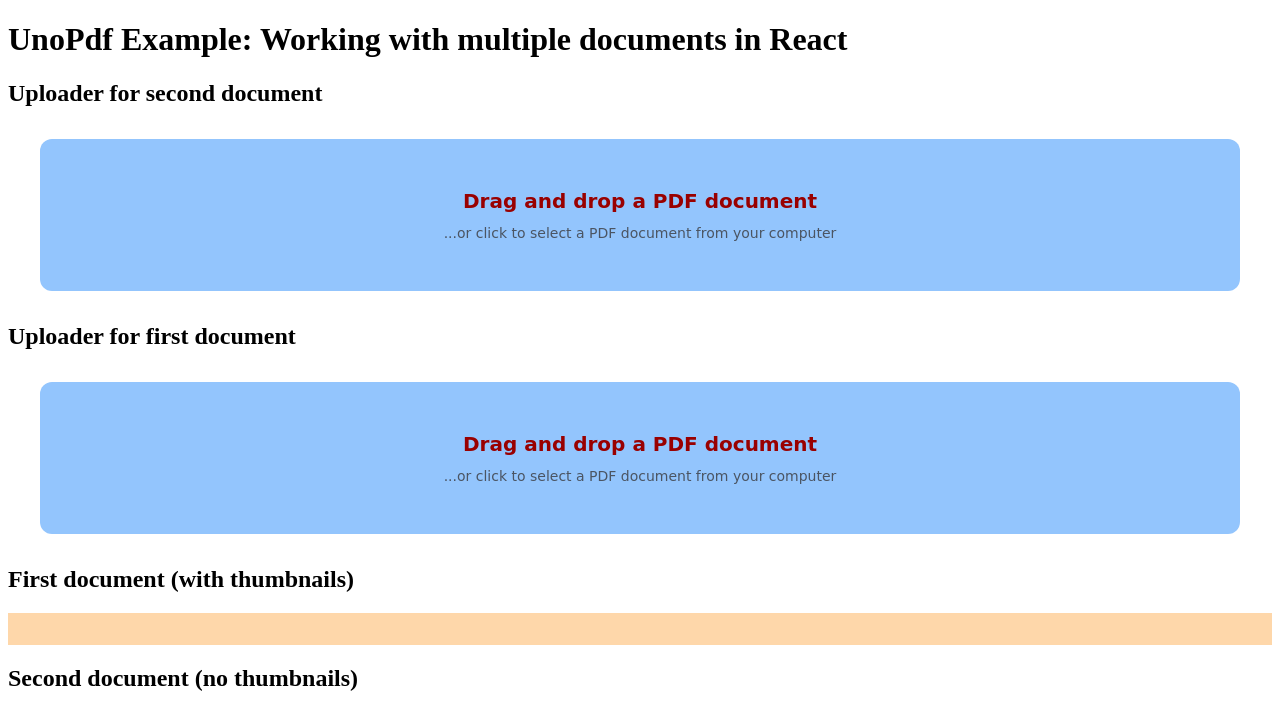
Code
tsx
import {
  PageMode,
  PdfApplication,
  PdfDocument,
  PdfPages,
  PdfUploader,
  PdfThumbnails,
  defineCustomElements,
} from "@tallcomponents/unopdf-react";

defineCustomElements();

// Note: this example uses Vite and retrieves the keys from the environment.
// This should not be used in production.
// See the authentication section in the usage guide for more information.

const publickey = import.meta.env.VITE_PUBLIC_KEY;
const privatekey = import.meta.env.VITE_PRIVATE_KEY;

function App() {
  return (
    <>
      <h1>UnoPdf Example: Working with multiple documents in React</h1>

      <PdfApplication publickey={publickey} privatekey={privatekey} />
      {/*
        It doesn't matter in what order or where the PdfDocuments are declared.
        They can be linked to other components via the name and document attributes.
      */}
      <PdfDocument name="doc-b" />
      {
        // #region pdfdocument-with-name-attribute
      }
      <PdfDocument name="doc-a" />
      {
        // #endregion pdfdocument-with-name-attribute
      }
      <h2>Uploader for second document</h2>
      <PdfUploader document="doc-b" />

      <h2>Uploader for first document</h2>
      {
        // #region pdfuploader-with-document-attribute
      }
      <PdfUploader document="doc-a" />
      {
        // #endregion pdfuploader-with-document-attribute
      }

      <h2>First document (with thumbnails)</h2>
      {
        // #region pdf-components-with-attributes
      }
      <PdfPages page-mode={PageMode.Multi} document="doc-a" name="pages-a" />
      <PdfThumbnails document="doc-a" pagesviewer="pages-a" />
      {
        // #endregion pdf-components-with-attributes
      }

      <h2>Second document (no thumbnails)</h2>

      <PdfPages page-mode={PageMode.Multi} document="doc-b" />
    </>
  );
}

export default App;
Running the example
- Download the react - Working with multiple documents project
- Unzip the file to a directory
react-multiple-documents.shellunzip react-multiple-documents.zip -d react-multiple-documents - Open a terminal and go to that directoryshell
cd react-multiple-documents - Install dependenciesshell
npm installshellyarn - Start the projectshell
npm run startshellyarn start