 UnoPDF
Appearance
Uploading a document - Vuejs
You can use the <PdfUploader> to upload documents to your collection. In order to use the uploader you need a <PdfApplication> that manages the session. The uploaded document is stored in and available via the <PdfDocument>.
You must have a <PdfApplication> and <PdfDocument> element in order to use the <PdfUploader>. Optionally you can have a <PdfPages> element to display the document. After you've uploaded a document it will be automatically display in the <PdfPages>.
vue
<template>
    <PdfApplication
        :publickey="publickey"
        :privatekey="privatekey"
    />
    <PdfDocument />
    <PdfUploader />
    <PdfPages :page-mode="PageMode.Multi" />
<template/>
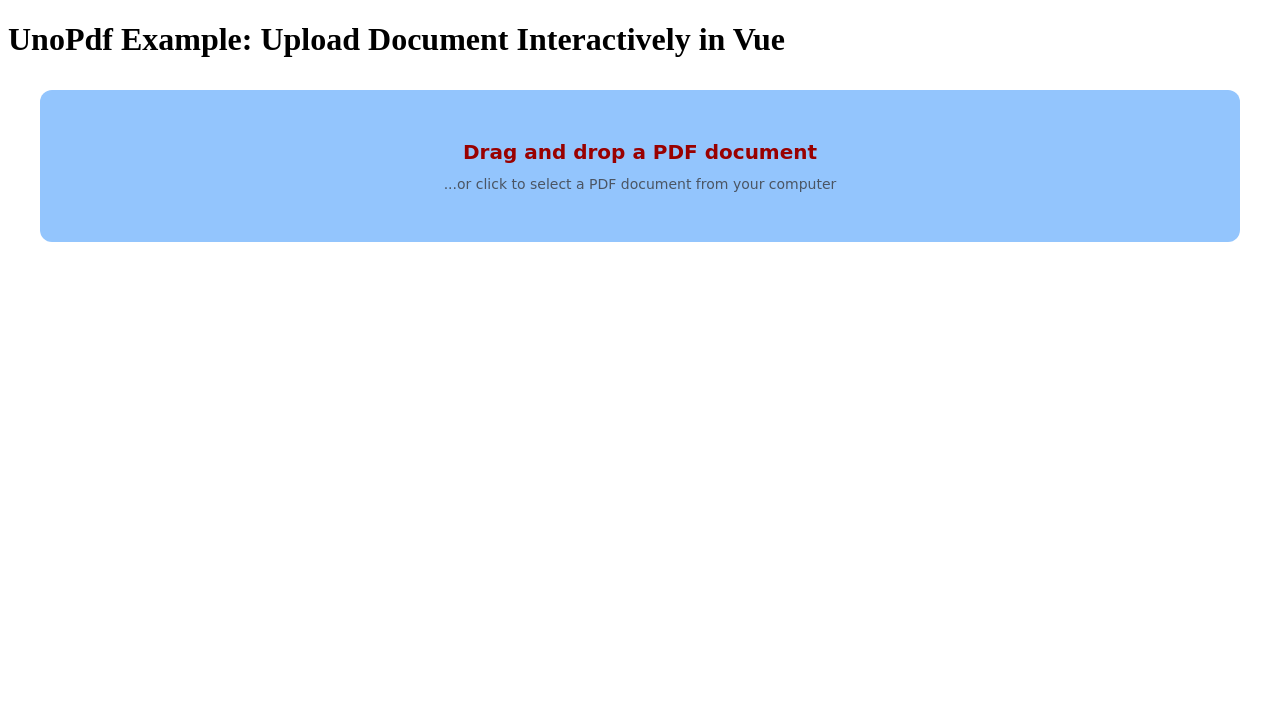
After you've uploaded a document it will be automatically opened in an attached PdfDocument.
Screenshot
Code
vue
<script setup lang="ts">
import { PageMode, PdfApplication, PdfDocument, PdfPages, PdfUploader } from "@tallcomponents/unopdf-vue";

// Note: this example uses vite and retrieves the keys from the environment.
// This should not be used in production.
// See the authentiation section in the usage guide for more information.

const publickey = import.meta.env.VITE_PUBLIC_KEY;
const privatekey = import.meta.env.VITE_PRIVATE_KEY;

</script>

<template>
  <h1>UnoPdf Example: Upload Document Interactively in Vue</h1>

  <PdfApplication
    :publickey="publickey"
    :privatekey="privatekey"
  />
  <PdfDocument />
  <PdfUploader />
  <PdfPages :page-mode="PageMode.Multi" />
</template>
Running the example
- Download the vue - Uploading a document project
- Unzip the file to a directory
vue-upload.shellunzip vue-upload.zip -d vue-upload - Open a terminal and go to that directoryshell
cd vue-upload - Install dependenciesshell
npm installshellyarn - Start the projectshell
npm run startshellyarn start